

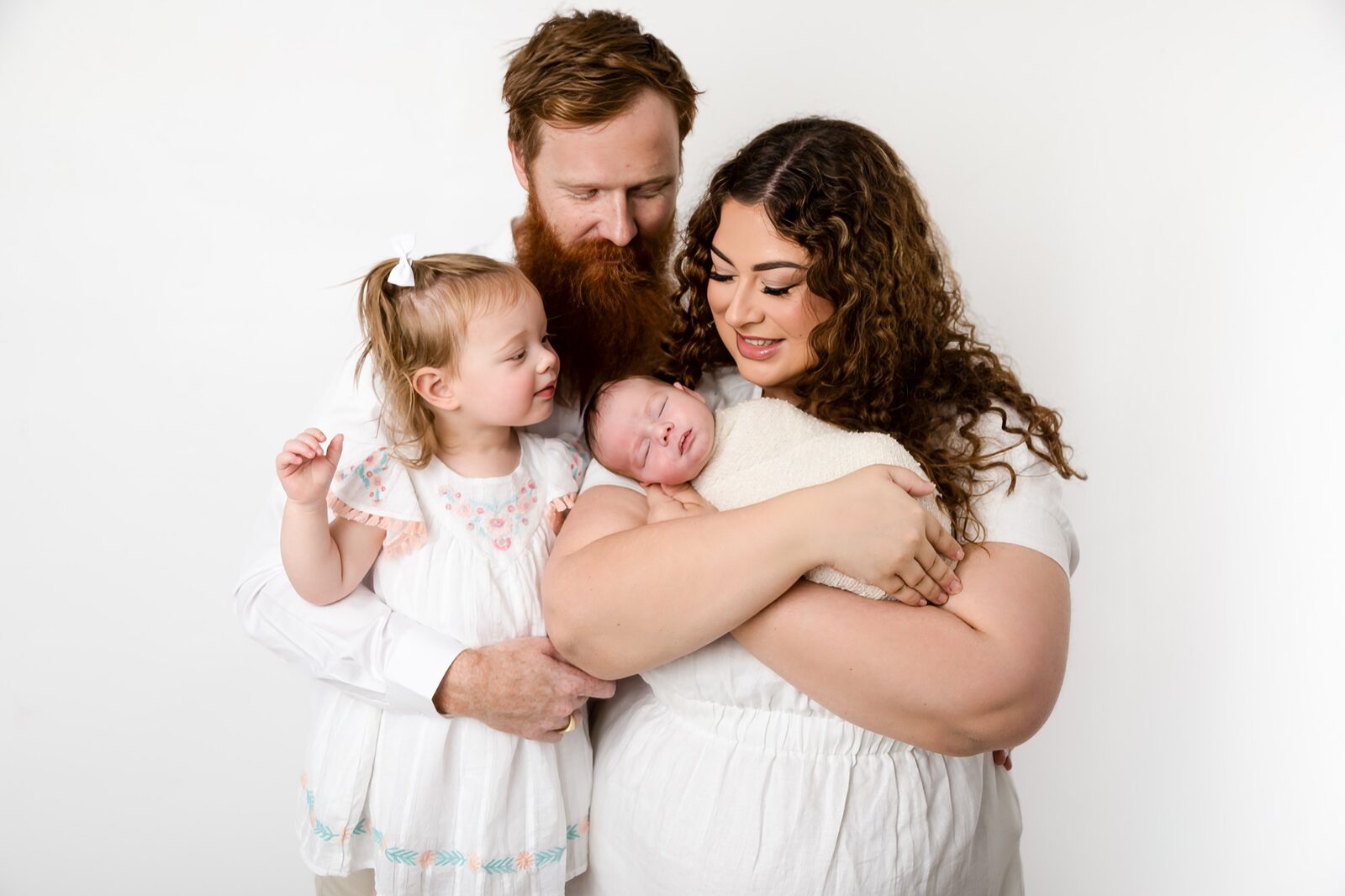
Key Takeaways
- Adobe Lightroom is the industry-standard tool for editing family photography like a pro — its non-destructive RAW workflow gives you surgical precision without touching original files.
- A consistent editing approach covering exposure, white balance, colour grading and skin tone correction transforms everyday snapshots into heirloom-quality portraits.
- Even the best post-processing software can't replace the value of professionally captured light, composition and genuine emotion — that's where a skilled family photographer in South-West Sydney makes all the difference.
Choosing the Right Software to Edit Family Photography Like a Pro
The editing tool you choose will shape everything downstream — your file quality, your consistency and the time you spend at the desk. Professional family photo editing demands software that can handle RAW files, support non-destructive adjustments and scale across dozens (or hundreds) of images from a single session.Adobe Lightroom: The Industry Standard
Adobe Lightroom remains the go-to choice for professional and serious enthusiast photographers alike. Its RAW processing engine delivers a level of tonal precision that JPEG workflows simply cannot match — the difference is roughly equivalent to sculpting in clay versus working with a rubber stamp. Key advantages of Lightroom for family portrait editing include:- Non-destructive editing that preserves your originals in every situation
- Batch sync tools that apply consistent adjustments across an entire session in seconds
- Advanced HSL controls for fine-tuning individual skin tones across different family members
- Automatic lens correction using camera metadata to remove distortion and vignetting
- Face recognition that organises portraits by person — genuinely useful for large family shoots
Adobe Photoshop: For Complex Retouching
Lightroom handles the global and selective adjustments beautifully, but when you need precise retouching, Photoshop is the right tool. Content-Aware Fill removes distracting background elements — a stray pram, a bin left in frame, an uninvited pigeon. The Healing Brush addresses temporary blemishes while respecting the underlying skin texture, so faces still look natural rather than plastic. Layer masks let you apply selective corrections to individual subjects — brightening one child's face without blowing out the sky behind them. For portrait photographers who work on skin smoothing, frequency separation is the technique that keeps fine detail (pores, freckles, natural texture) intact while evening out larger tonal variations.Mobile Apps: Useful, But With Limits
For quick turnarounds and social media previews, Adobe Lightroom Mobile offers a surprisingly capable RAW editing experience on iOS and Android. VSCO and Snapseed round out the mobile toolkit for fast filter-style adjustments. That said, mobile editing has real limitations around colour accuracy, screen calibration and fine detail work. Treat it as a preview tool, not a delivery workflow.Essential Basic Edits That Transform Family Photos
Before reaching for any creative effect, lock in the foundational corrections. These are the adjustments that separate professional-quality family portraits from amateur edits — and they apply whether you're working on a studio session in Glen Alpine or an outdoor shoot in a Macarthur-region park.Exposure and White Balance First
Start with exposure correction. A modest boost of +0.3 to +0.7 stops often breathes immediate life into family faces, lifting shadow detail without clipping highlights. Work with the histogram — not your gut — to make this call accurately. White balance is equally critical. Colour casts are the enemy of flattering skin tones. A practical reference guide:- Tungsten interior light: set colour temperature to approximately 3200K
- Overcast outdoor conditions: aim for 6500–7000K
- Open shade on a sunny day: 7000K or higher to counteract blue cast
- Use the eyedropper on a neutral white or grey reference point for precise correction
Colour, Contrast and Vibrance
Once exposure and white balance are sorted, turn your attention to colour and contrast. Vibrance — not saturation — is your friend for family portraits. Vibrance intelligently boosts muted colours without oversaturating skin tones, which tends to go orange-red very quickly with a blunt saturation push. For contrast, use the tone curve rather than the flat contrast slider. A gentle S-curve — lifting shadows slightly, pulling highlights back a touch — adds a cinematic richness that the contrast slider alone can't replicate. The key adjustment checkpoints are:- Highlights: recover blown-out areas, particularly in outdoor sessions with bright sky
- Shadows: lift to reveal detail in darker areas, particularly under eyes and in hair
- Whites and blacks: set the endpoints of your tonal range last, using the histogram as your guide
Strategic Cropping and Composition Refinement
Cropping is not an afterthought — it is a compositional decision with real impact on emotional resonance. Rule-of-thirds placement is a useful default, but tight family portraits often benefit from cropping closer than convention suggests. As a practical guide:- Faces should occupy at least 15% of the frame in emotional close-up shots for maximum impact
- Always straighten the horizon before cropping — a 1-degree tilt reads as visually uncomfortable at print size
- Portrait orientation suits groups of three or more; landscape works well for couples and pairs
- For square crops destined for Instagram, be conscious of what storytelling context you're sacrificing from the edges
"The best family photo editing doesn't draw attention to itself — it quietly removes every distraction between the viewer and the emotion in the frame."
Skin Tone Retouching Without Losing Authenticity
Natural skin tone correction is where many self-taught editors stumble. The goal is not perfection — it's consistency and warmth. Family members photograph with different base tones, different sun exposures and different responses to the ambient light. Your editing should bring them into visual harmony without erasing the character that makes each face unique.Using the HSL Panel for Individual Tone Control
Lightroom's HSL (Hue, Saturation, Luminance) panel gives you independent control over individual colour channels. For skin tone correction:- Orange channel: the primary driver of Caucasian skin tones — adjust luminance carefully to brighten without washing out
- Red channel: manages flush, redness and sunburn; desaturating slightly can be highly effective
- Yellow channel: influences warmer, olive and deeper skin tones — handle with care to avoid colour shifting
Targeted Brush Work in Photoshop
For individual portrait retouching, Photoshop's targeted healing tools are worth the extra round-trip. Temporary blemishes, shadows from harsh outdoor light and eye brightening all respond well to brush-based correction. The critical discipline here is restraint — less is more, particularly on children's faces where skin texture is part of the charm.Batch Editing Workflows That Save Serious Time
A full family session can generate 500–800 RAW files before culling. Without a structured batch editing workflow, post-processing becomes the most time-consuming element of photography — more demanding than the shoot itself. The professional approach:- Cull ruthlessly first — reduce to your best 20–30% before touching a single adjustment
- Develop one hero image from each distinct lighting condition in the session
- Use Lightroom's sync function to copy those settings across all images shot in matching conditions
- Apply targeted local corrections (dodging, brushwork, spot removal) as a final pass on your select images only
- Export to a consistent profile — file size, colour space and sharpening settings should be identical for every client delivery
Ready to See What Professional Editing Actually Looks Like?
At Faithful Photography, every session is fully edited by our team — beautifully retouched, colour-graded and delivered ready to print. Studio locations in Glen Alpine and Gledswood Hills, proudly serving families across the Macarthur region.
Preparing Your Edited Photos for Print and Digital Delivery
Editing for screen and editing for print are different disciplines. A portrait that looks stunning on a calibrated monitor can appear flat, dark or slightly off-colour when it hits the paper. Colour-managed export workflows protect the hours you've invested in editing. For print delivery, export in the sRGB or Adobe RGB colour space at full resolution with no sharpening applied — professional print labs apply their own output sharpening optimised for their media and printers. For digital albums and framed wall prints, coordinate with your lab on ICC profiles. If you're planning to share session images on social media, export at 2048px on the long edge in sRGB with light output sharpening. This balances visual quality against the compression that platforms apply during upload. Also worth bookmarking: our guide to Family Portrait Wardrobe Tips: Coordinated Styles For Every Season — because the best edit in the world can't rescue outfits that clash badly in-frame.Why a Professional Family Photographer Changes Everything
Here's the honest truth about editing family photography like a pro: the techniques above are genuinely valuable, and learning them will improve your results meaningfully. But the edit can only work with what the capture gives it. Flat light, cluttered backgrounds, missed focus and forced expressions are problems that no amount of post-processing skill can fully resolve. That's what separates a skilled family photographer from a capable home editor. Our team at Faithful Photography works from two purpose-built studios — one in Glen Alpine and one in Gledswood Hills — each designed to produce the kind of clean, beautifully lit images that make editing a joy rather than a rescue operation. We serve families across Campbelltown, Camden, Narellan, Gregory Hills, Harrington Park and throughout the broader Macarthur region of NSW. If you're based in the area and considering a professional session, our Campbelltown photography team would love to hear from you. For session inclusions and investment details, visit our session pricing page — or browse our Lighting Equipment Studio Essentials post if you're curious about the gear that sets a pro studio apart.Frequently Asked Questions
What is the best software for editing family photography like a pro?
Adobe Lightroom is widely regarded as the best starting point for professional family photo editing. It handles RAW files with precision, supports non-destructive workflows and includes batch editing tools that make managing large session galleries efficient. For complex retouching tasks — removing background distractions or detailed skin work — Adobe Photoshop is the natural companion. Together, they cover the full professional editing workflow.
How do I fix skin tones in family portraits during editing?
Start with white balance correction using the eyedropper on a neutral reference point in the image. Then use Lightroom's HSL panel to fine-tune individual colour channels — the orange channel governs most Caucasian skin tones, while red manages flush and redness. Vibrance (rather than saturation) boosts overall colour without pushing skin tones into unnatural territory. For targeted corrections on individual faces, Photoshop's Healing Brush and frequency separation technique give the finest level of control.
Should I shoot in RAW or JPEG for family photography?
RAW every time, if your camera supports it and you intend to edit professionally. RAW files retain far more tonal information than JPEGs — the dynamic range difference is significant, particularly in challenging lighting conditions like harsh midday sun or tungsten-lit indoor environments. That extra data gives you latitude to recover blown highlights, lift shadows and correct white balance without introducing noise or colour shifts. JPEGs bake these decisions in at capture and offer very little room to correct in post.
How long does it take to edit a full family photography session?
It depends on the size of the session and your workflow efficiency. A typical 60–90 minute family session might yield 400–600 RAW files before culling. After culling to your selects (roughly 20–30%), a well-structured Lightroom batch workflow can produce finished edits in 2–4 hours. Photoshop retouching on individual images adds time per image. Professional photographers often invest in carefully built preset libraries and sync workflows to keep turnaround times consistent across clients.
Can I get professional-quality family portraits without editing them myself?
Absolutely. When you book with a professional studio like Faithful Photography in South-West Sydney, full editing and retouching is included in your session. You receive beautifully finished images — colour-graded, retouched and ready for printing or digital sharing — without needing to learn a single Lightroom panel. Our studios in Glen Alpine and Gledswood Hills serve families across Campbelltown, Camden, Narellan and the Macarthur region of NSW.
What cropping ratio works best for family portrait photos?
The answer depends on how you intend to use the final image. For traditional framed wall prints, 4×6, 5×7 and 8×10 aspect ratios are the most practical. Portrait orientation suits groups of three or more people, while landscape orientation works well for couples and smaller family configurations. Square crops (1:1) perform well on Instagram and social media but sacrifice edge storytelling. Always straighten your horizon before committing to any crop — even a subtle tilt reads as disorienting at larger print sizes.
Visit Faithful Photography Today
Whether you're after a studio session for your growing family, a milestone newborn portrait or a relaxed extended family gathering, our award-winning team across Glen Alpine and Gledswood Hills is ready to capture something truly worth keeping — and edited to perfection before it reaches you.